





Backups
Updated:
Talk
Talk
Talk Settings
Page Editor
Create a Card
Create a Folder
Edit a Card or Folder
Copy a Card or Folder
Move a Card or Folder
Enabling and Disabling the Editor
Search Not Displaying Any Results
Missing Cards and Folders
Dual Language Mode
Search for Cards and Folders
Message Window
Alternative Pronunciation
Therapy
Therapy
News
News
Connect
Connect
Table of Contents
Creating a backup saves a snapshot of your current data locally to the device.
Saving a Backup:
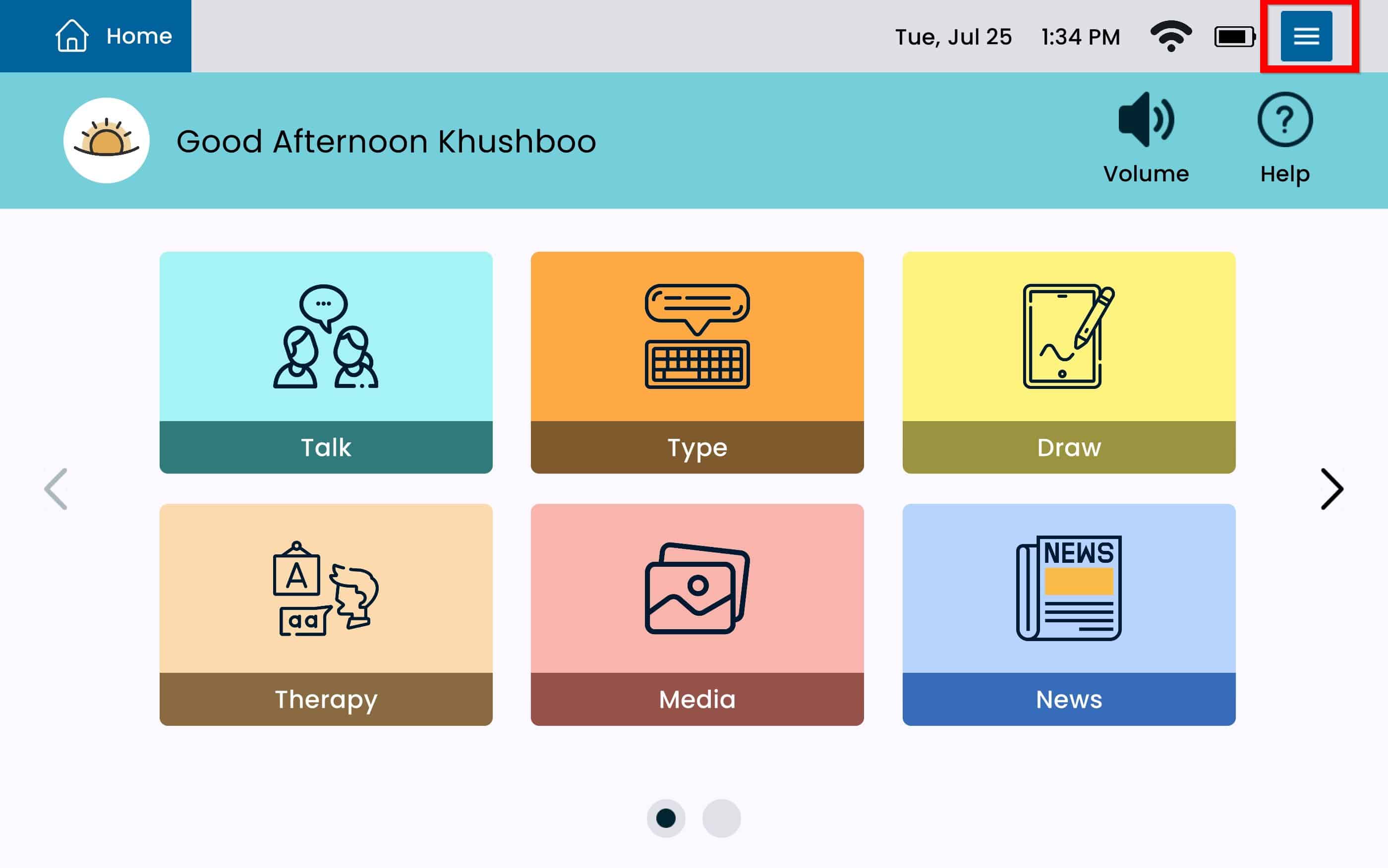
- Select the blue Settings Menu button on the top right corner.
2. Select General Settings and scroll down the left panel until you see Backups.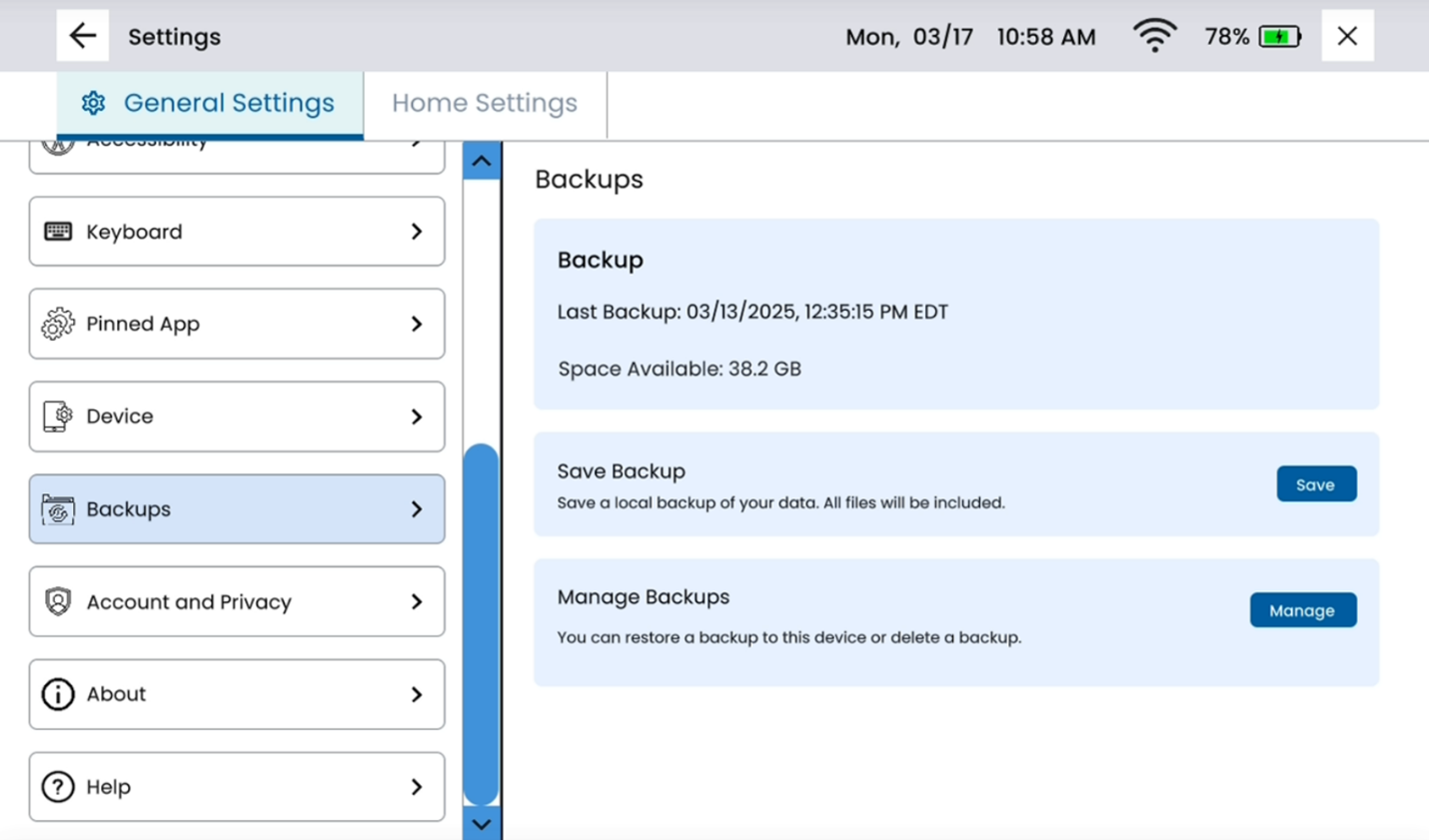 3. From the Save Backup section, select Save on the right side.
 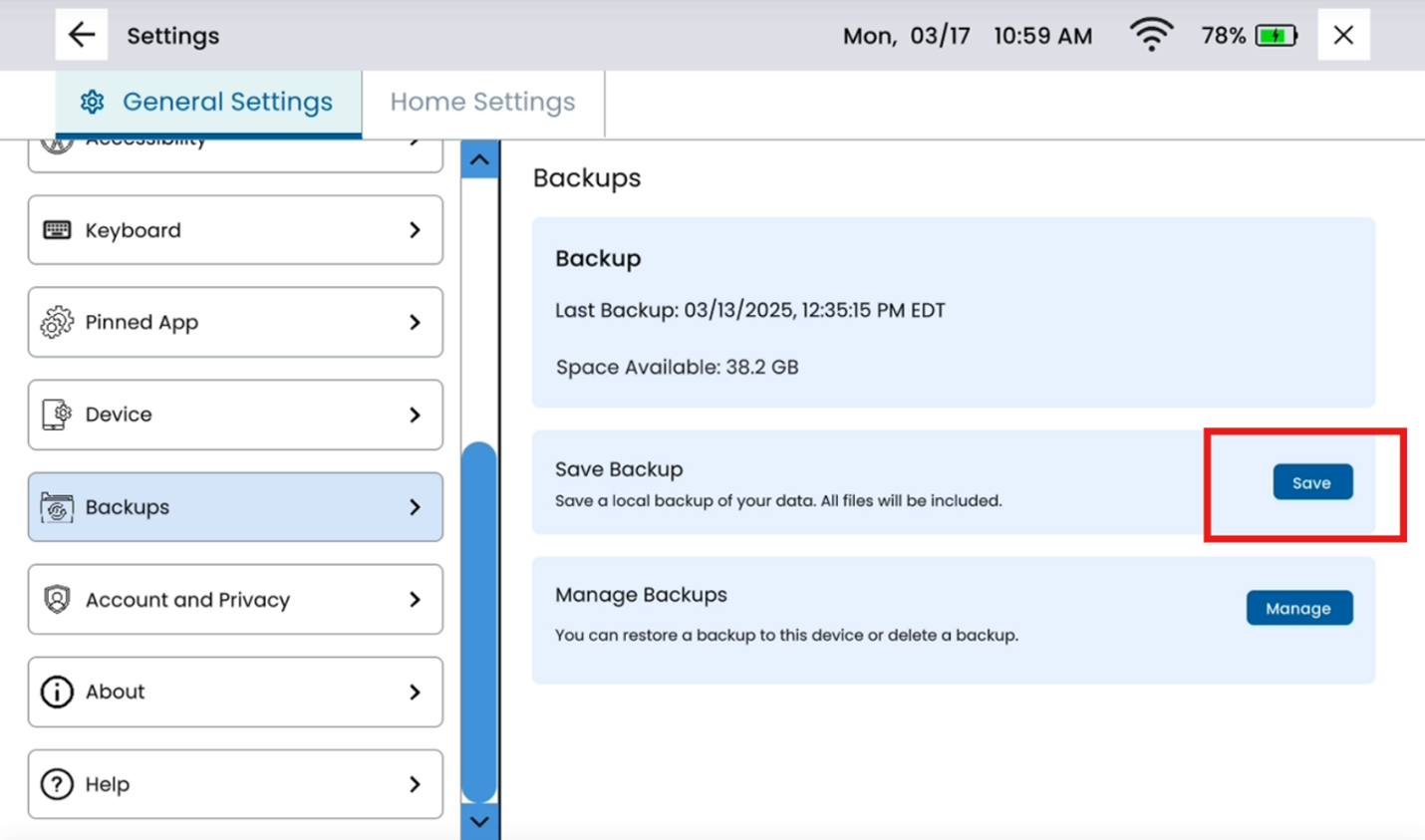 4. After selecting Save, name your backup and select Save again.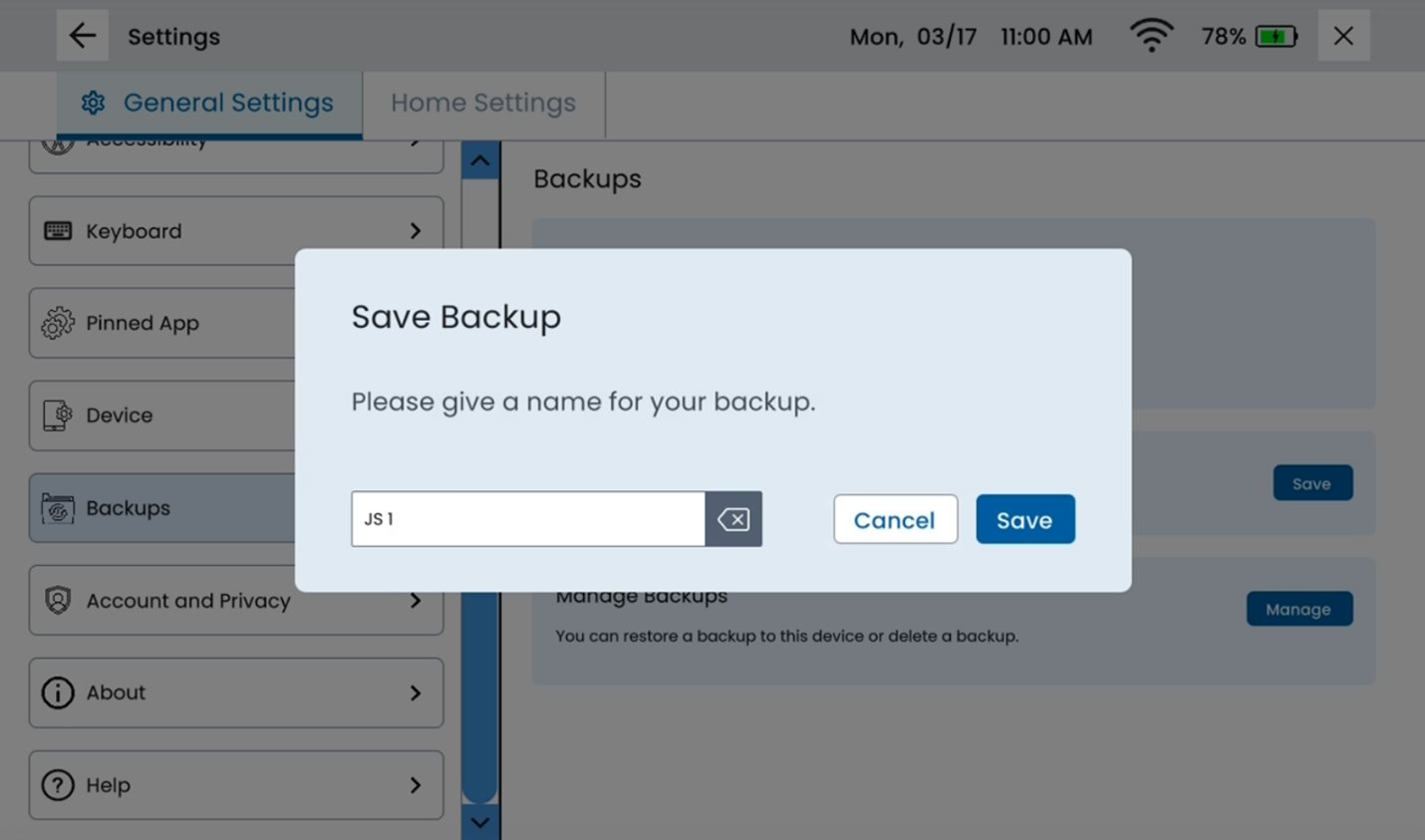
Restoring a Backup:
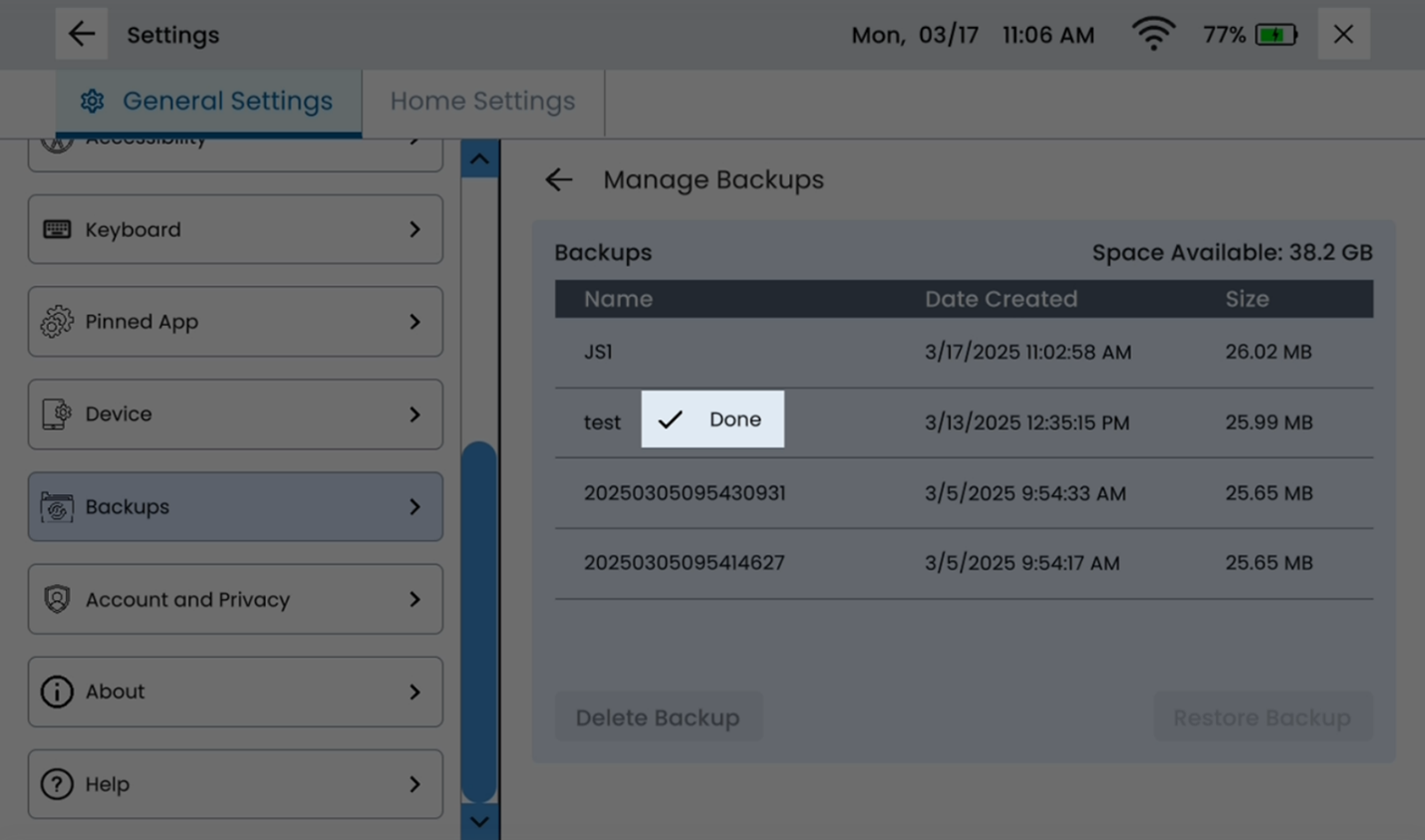
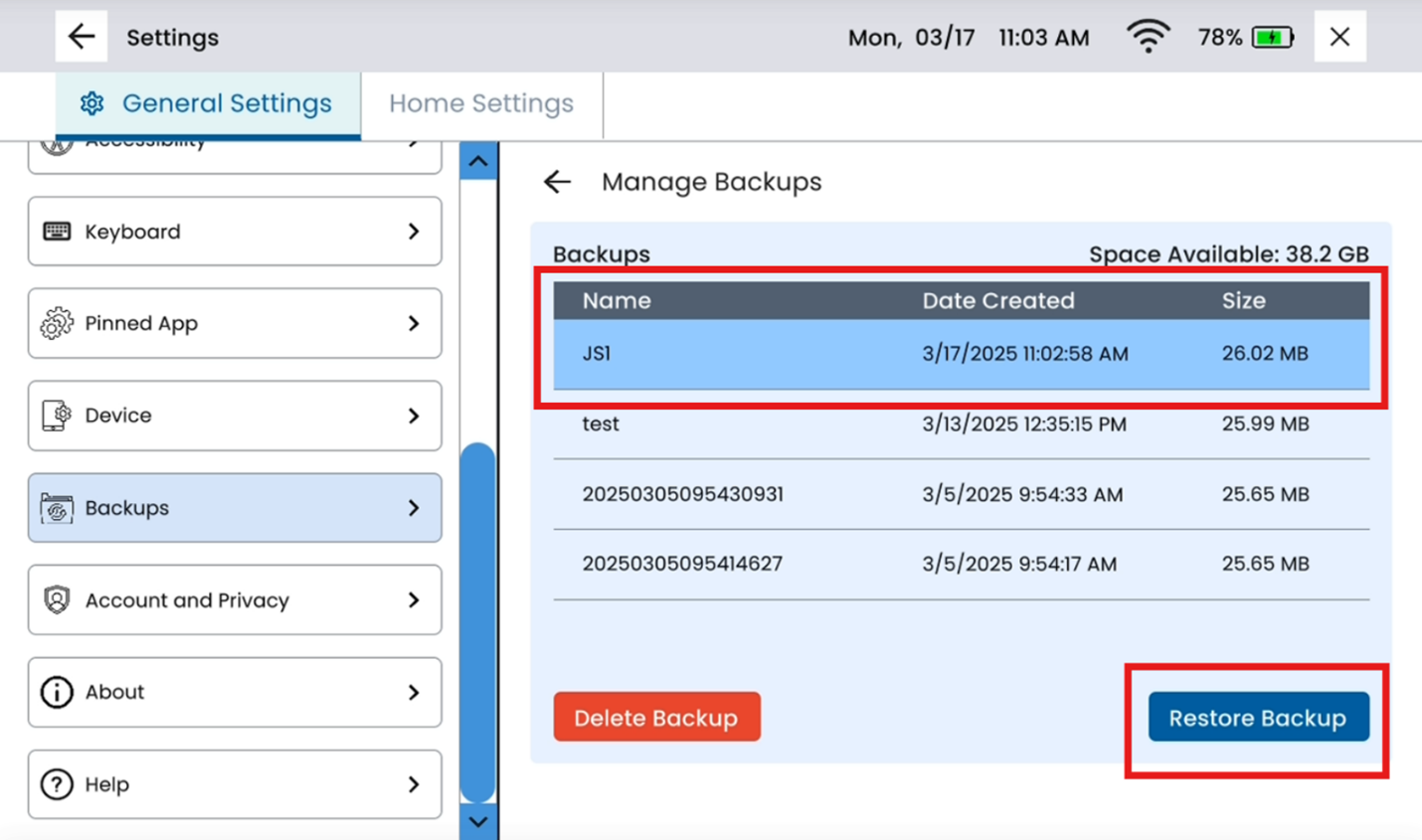
- Select Manage to view available backups.
- Select the backup you would like to restore. Press Restore on the bottom right.
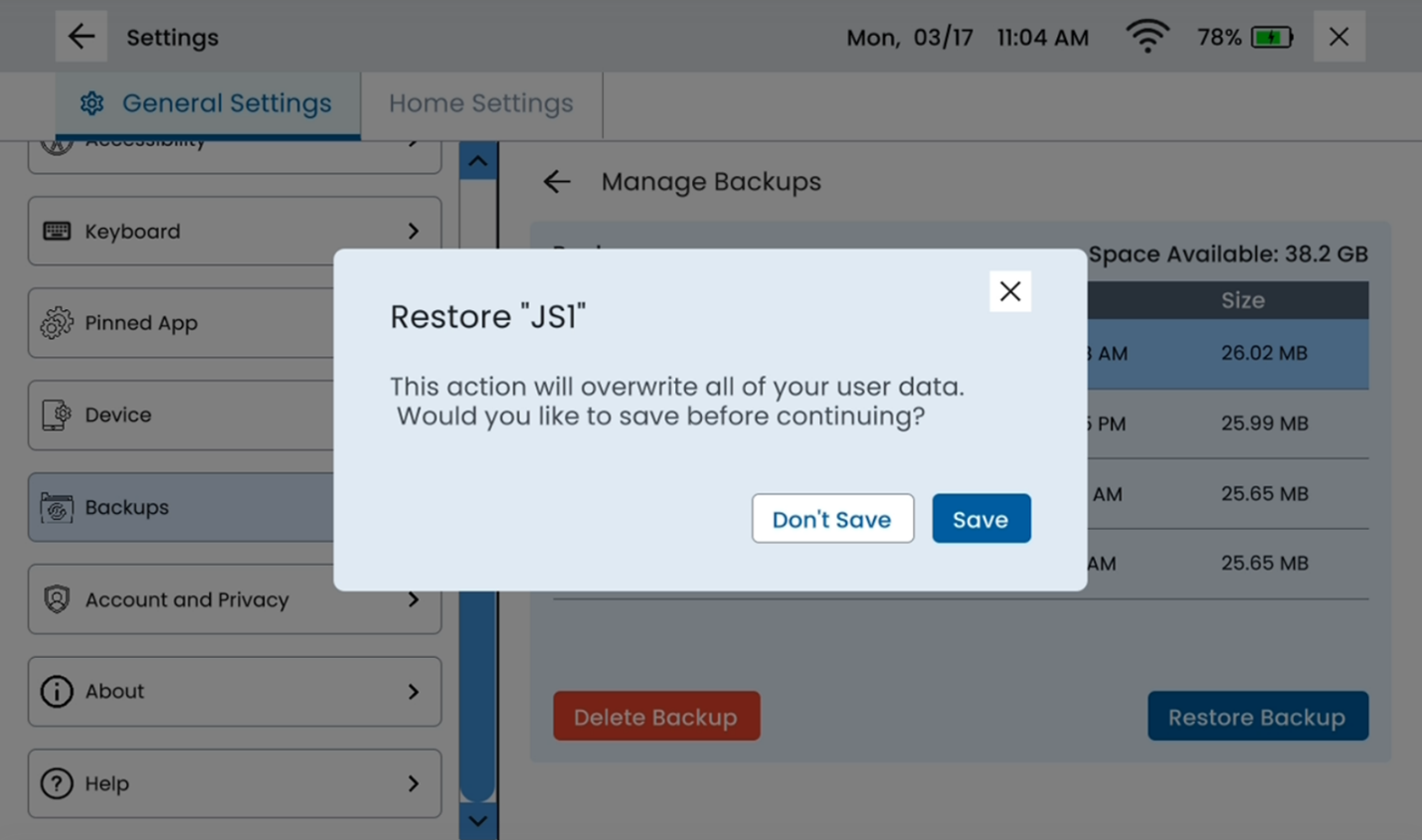
- The device will ask if you would like to save a current backup before restoring the selected backup. Select Save or Don’t Save from the pop up window depending on preference. (If you select save, it will ask you to name the current backup you are saving before restoring the backup selected.)
- When the backup has been successfully restored, you will see Done.