






Message Window
Updated: September 04, 2025
Talk
Talk
Talk Settings
Page Editor
Create a Card
Create a Folder
Edit a Card or Folder
Copy a Card or Folder
Move a Card or Folder
Enabling and Disabling the Editor
Search Not Displaying Any Results
Missing Cards and Folders
Dual Language Mode
Search for Cards and Folders
Message Window
Alternative Pronunciation
Therapy
Therapy
News
News
Connect
Connect
Message Window
Message Window allows the user to combine multiple cards to build a phrase or sentence. To turn on Message Window, please follow these steps:
- From Talk, select the blue Settings Menu button on the top right corner.
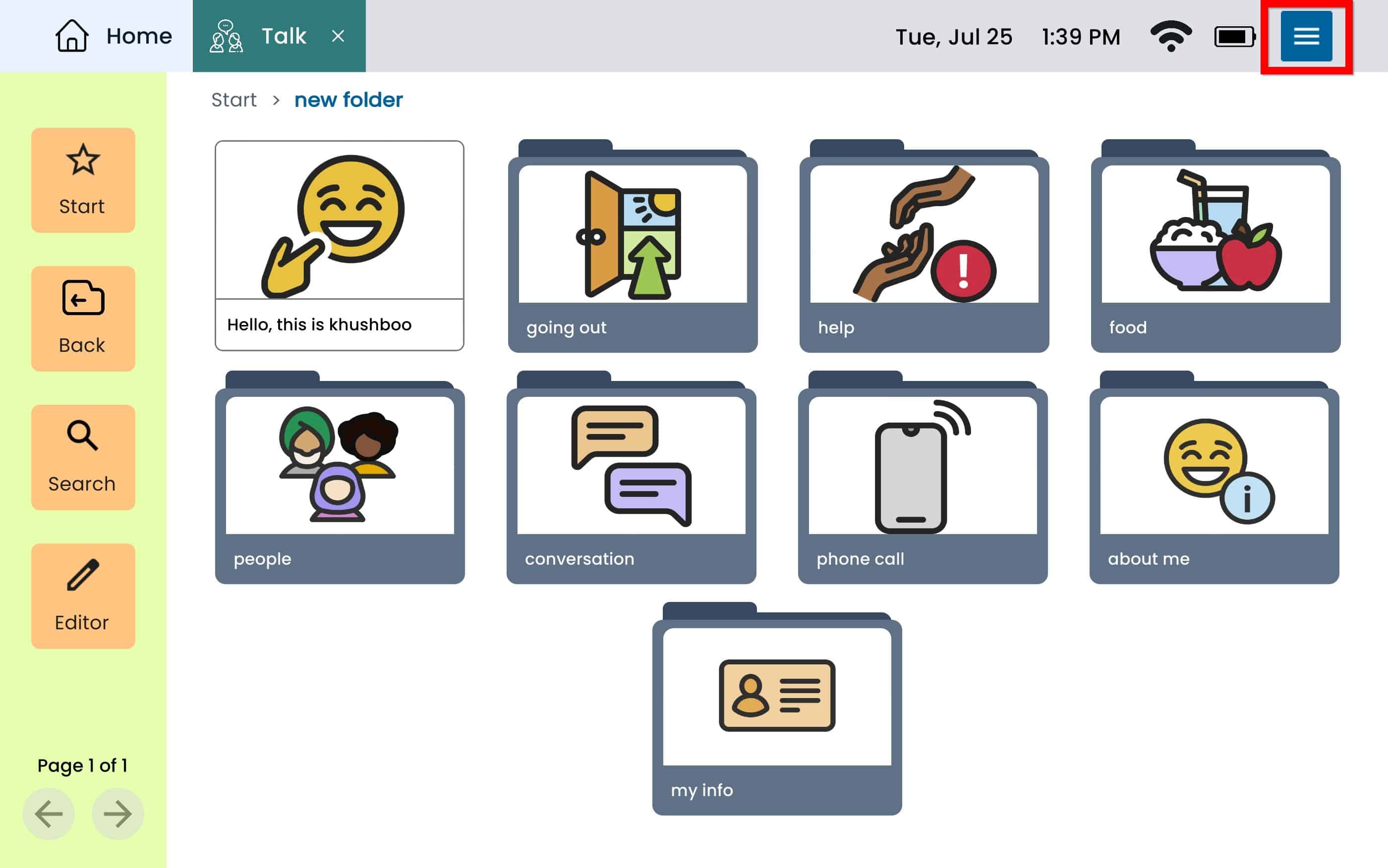
- Select the Message Window tab from the left panel. From Message Window Mode select the toggle button. The button will display blue and to right when the setting is turned on, and will display gray and to the left when the setting is turned off.
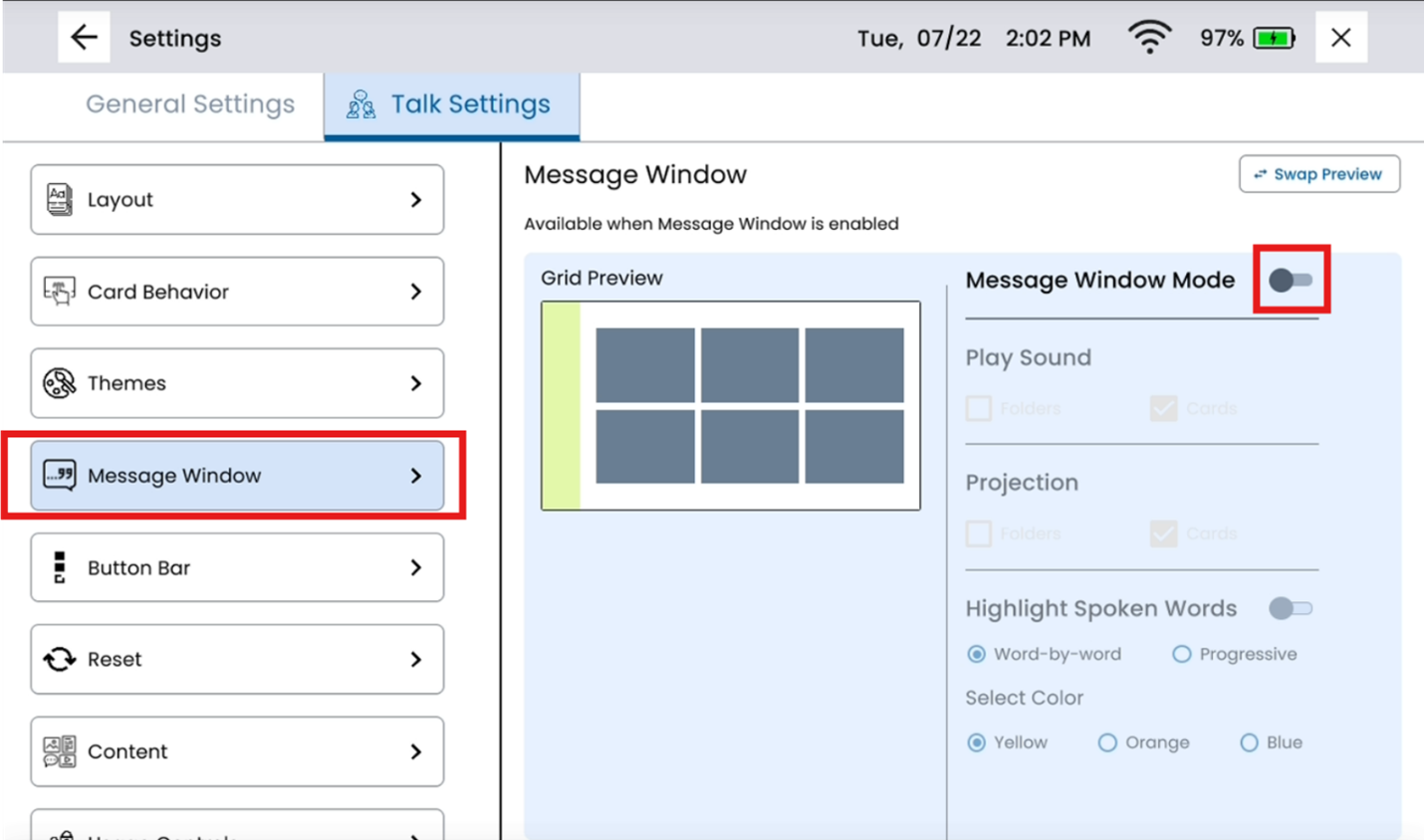
Please note: Settings under the Card Behavior Tab within Talk settings are not available when Message Window is enabled. These settings will be available within the Message Window tab when this is enabled.
Message Window Settings
Once message window has been turned on, you may customize the Card/Folder Behavior.
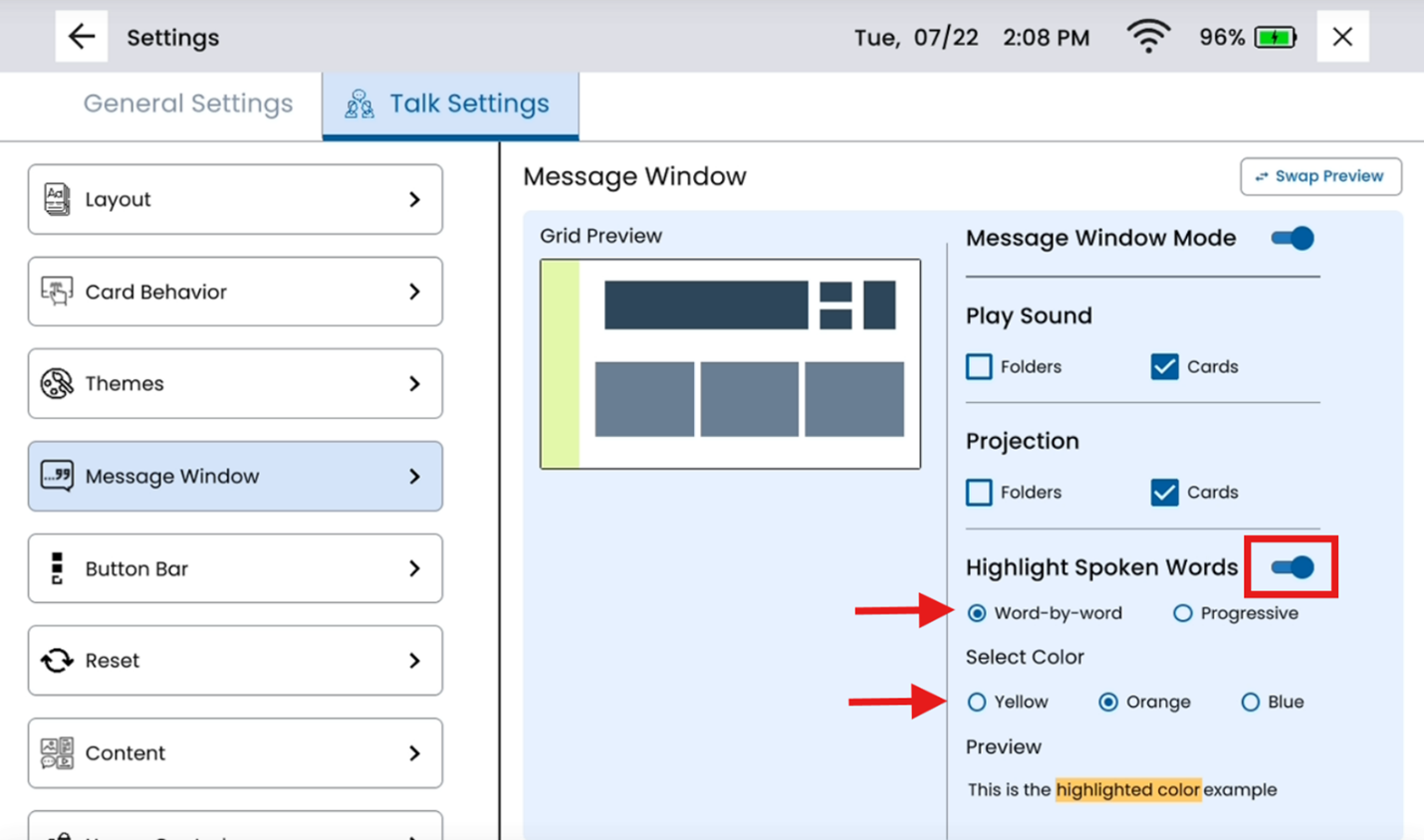
- Play Sound – Select whether Cards and/or Folders speak when they are added to the message window.
- Projection – Select whether Cards and/or Folders will project when selected to be added to the message window.
- Highlight Spoken Words – This setting will highlight the words are they are spoken. This setting only applies to the Cards and Folders when projection is turned on and does not highlight text in the Message Window itself.
